Welcome to EarthViewSatelliteMaps!
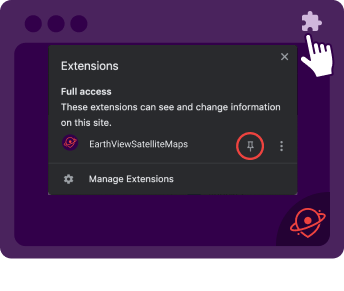
Pin EarthViewSatelliteMaps to your browser. To do this, click the puzzle icon on the top right corner of your browser window and select the pin icon next to EarthViewSatelliteMaps.


Accessing the Widget
You can start using EarthViewSatelliteMaps in just one click! Here’s all you need to know.

1
Opening the Widget
Access EarthViewSatelliteMaps at any time by clicking on the icon. You can also move the widget or icon wherever you’d like within your browser.

2
Reactivating the Widget
If disabled, you can easily reactive the widget by clicking the EarthViewSatelliteMaps icon at the top right of your browser, then select ‘Enable Everywhere’.
3
Closing the Widget
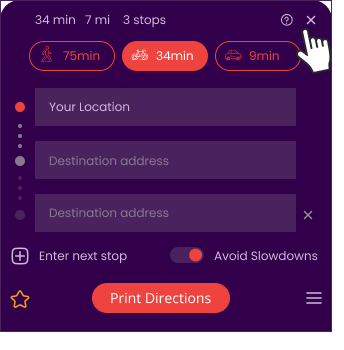
Once done using EarthViewSatelliteMaps, you can close the widget by clicking the 'X' icon to close.
4
Disable the Widget
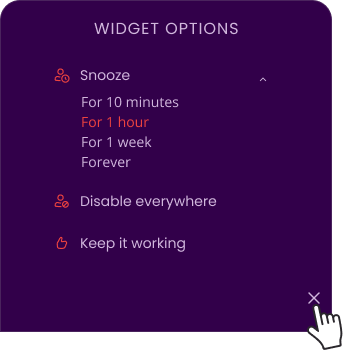
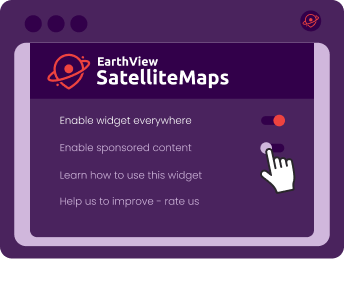
To snooze or disable the EarthViewSatelliteMaps widget, click the Settings icon to view a menu with these options.
5
Disabling sponsored content
To turn off sponsored content, simply set ’Enable Sponsored Content’ to Off.